Music
On this page
Finding something to play#
Choose Music on the main menu. You will see these lists:
- Playlists (including On-The-Go, described below)
- Artists, Albums, Compilations, Songs, Genres, Composers
- Audiobooks (see Audiobooks)
- Search
Turn the wheel to move, press Select to open something, and Menu to go back. In a long list, spin the wheel fast and a big letter appears so you can jump to that part of the alphabet. A small speaker mark on the right shows which song is playing.
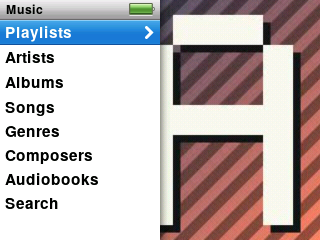
Search: pick Search, then use the wheel to choose letters. Results appear as you type.
Shuffle Songs is on the main menu. Choose it to play your whole library in random order.
Now Playing#
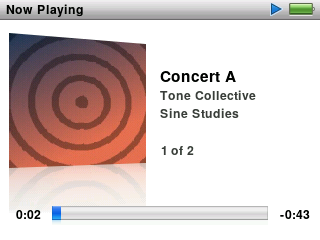
Start a song and you land on Now Playing. It shows the cover, title, artist, album, how far through the song you are, and the time left.
Wheel: volume.
Play/Pause: pause and resume.
Next / Previous: tap to skip. Press and hold to fast-forward or rewind inside the song.
Select: step through extra controls, in this order:
- Scrubber. Turn the wheel to slide to another point in the song. It jumps there when you stop turning.
- Rating. Turn the wheel clockwise to give 1 to 5 stars, or counter-clockwise to remove them.
- Shuffle. Choose Off, Songs or Albums.
- Lyrics, only if the song has lyrics saved in it. Turn the wheel to scroll.
- Visualiser (see below).
- Back to normal.
If you do nothing for a few seconds, it returns to the normal view by itself.
If you leave a menu untouched while music plays, Now Playing comes back on its own after a short while. Press Menu to return to where you were.
The visualiser#
The visualiser fills the screen with moving pictures that follow the music. To use it, press Select on Now Playing until the extra controls reach the visualiser step. The screen stays lit while it shows.
- Change the style: press and hold Select to pick one of five: Bars, Mirror, Scope, Spectrogram and Radial. The player remembers your choice.
- Volume: turn the wheel; a volume bar shows for a moment.
- Leave: press Select.
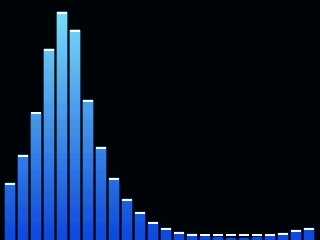
Showing the visualiser uses more battery than normal playing, because the screen stays on.
Ratings#
Rate songs on Now Playing as described above. Ratings are saved on the player and show up in the song’s info.
On-The-Go playlists#
An On-The-Go playlist is one you build on the player itself.
- Find a song and press and hold Select on it (or on Now Playing). A menu opens.
- Choose Add to On-The-Go.
- Open Music › Playlists › On-The-Go to play or look at your list.
The same hold menu also has Browse Album and Browse Artist, to jump straight to the rest of that album or artist, and Cancel.
Shuffle and repeat#
Set them on Now Playing (Select, shuffle step), or any time in Settings (see Settings). Shuffle can be Off, Songs or Albums.