Video
On this page
Note
Video is switched off in 0.7.0-alpha: the Videos menu isn’t shown yet. It arrives in 0.8.0, and this chapter describes it as it will work then.
The player’s picture is small, so it plays videos best when they are converted first. Converting is quick and free; see Making videos that play well. Videos you have converted show up on their own after you copy them over.
Finding and playing#
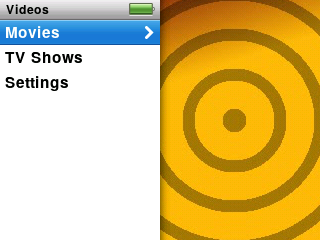
Choose Videos on the main menu. It has:
- Movies: a list with posters.
- TV Shows: pick a show, then a season, then an episode.
- Settings: video options (below).
Podcasts that are videos appear in the Podcasts list among the audio ones, marked with a small screen symbol.
Choose a title to start. Videos remember where you stopped, and by default start again from that spot.
The controls#
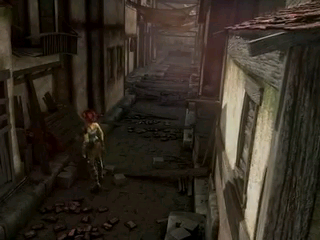
- Play/Pause: pause and resume.
- The wheel: volume.
- Select, while paused: show or hide a bar at the bottom with the time played, the time left and chapter marks. Press it again to slide to another point with the wheel.
- Next / Previous: jump to the next or previous chapter, if the video has chapters.
- Menu: stop and go back to the list. Your place is kept.
Note
Videos need to be converted first. Anything else may show the Can’t Play Video screen.
Settings for video#
Go to Videos › Settings:
- Start Playing: Where Left Off (the default) or From Beginning.
- Fit to Screen: on or off. Videos made with our converter are already the right size, so you will see no difference.
Making videos#
Use the converter. It handles movies, TV episodes and podcasts, can fill the screen or add black bars, and can burn subtitles into the picture. Step-by-step: Making videos that play well.
If a video won’t play#
You see Can’t Play Video and a short reason. The converter page explains each one, and what to do next. If it keeps happening, see Troubleshooting.